Showing posts with label Outlawz Challenge Submissions. Show all posts

Thursday, January 28, 2016

i appreciate all that you do


Here's another "daughter" request.  She wanted to give her teacher a thank you card for the book she received for her birthday.  Her requirements for me: an owl and a rainbow.

The owl is from the Stampin' Up! Owl Builder punch.  I wanted to add google eyes because they're fun and who doesn't love a little fun on their card?!

The texture with the tree is the Stampin' Up! woodgrain embossing folder with a little ink added to the bossing folder to give the impressions added dimension.  The heart cut from the tree is a Sizzix framelit.


I was inspired by Jennifer McGuire's post in creating my rainbow.  However, since I didn't have the border die that she used, I relied on my wonderful Gazelle to get the job done!  I simply created the arcs in the Funtime software and let my Gazelle do all the work for me.

Thanks for looking!!
*´¨)
¸.•´¸.•*´¨) ¸.•*¨)
(¸.•´ (¸.•` ¤ Jamie*´¨)

Birthday Invites and Thank you!


When I asked my daughter what she wanted me to put on her birthday invites, it was a definite Hello Kitty.  With plenty of coloring book pages available, we printed her out using a printer that uses toner versus the ink jet.  Using the printer gave us the option to use the rainbow deco foil.


The balloons were simply created using circle punches and the Stampin' Up! Owl builder punch.  I used the feet of the owl to create the bottoms of the balloons.

Since I'm not one to let things go to waste in my crafting room, I saved the negative pieces of deco fail and used them to make the thank you's. 


Using my Xyron 900, I added permanent adhesive to white cardstock and attached the negative from the deco foil.


I inked the bottom base of the card where you would be able to see through the die cut "thanks" to make it pop out more.

While I suggested that my daughter simple sign her name to the inside of the card, she insisted that she wanted to write a message to each card she was sending out.  Proud Mommy moment right there!!


Thanks for looking!!
*´¨)
¸.•´¸.•*´¨) ¸.•*¨)
(¸.•´ (¸.•` ¤ Jamie*´¨)

Friday, January 15, 2016

God Bless You


For this card I utilized the retired stamp set from Stampin' Up! called Crosses of Hope.  The inspiration came from The Outlawz Challenges for Saturday that include the theme of Valentine's or Love in Mind.

I stamped the cross in black ink and used watercolor pencils to flowers and leaves.  To give the cross a sparkle, I added Wink of Stella.  For the heart surrounding the cross, I used Sizzix layering heart dies.


I heat embossed "God Bless You" with white embossing powder.  The hearts on either side are from Stampin' Up! Itty Bitty Accents Punch Pack.


Thanks for looking!!
*´¨)
¸.•´¸.•*´¨) ¸.•*¨)
(¸.•´ (¸.•` ¤ Jamie*´¨)

Monday, January 11, 2016

Brodie Scrapbook Page


I'm finally able and have a strong desire to get back at getting my scrapbooks up-to-date!  Here's a very simple page I  made to honor my sweet Brodie, who passed away 2 years ago.

I used my BossKut Gazelle to cut the main light blue image and her name.

Thanks for looking!!
*´¨)
¸.•´¸.•*´¨) ¸.•*¨)
(¸.•´ (¸.•` ¤ Jamie*´¨)

Saturday, January 9, 2016

Just for You!


Sometimes it just takes new stamps to get that crafty mojo going.  I've truly been in a slump lately and for Christmas purchased the Peaceful Pines by Stampin' Up!, the coordinating dies, and the adorable Build a Snowman set by Stampendous.

Then with some inspiration from The Outlawz Challenges, I finally found my crafty mojo!

For the pine, I started by stamping it in VersaMark and then heat embossed it with white embossing powder.  With the coordinating die, I cut it out and set it aside.

On white cardstock, I stamped the snowman and the sentiment.  I colored in the hat, glove, and added some lines to the scarf.

Using some dimensionals I made the tree stand out a little on front, like the snowman was hiding behinding it.  Then glued on the white pom pom as a snowball in his glove.

I added a couple snowflakes into the empty space that looked lonely.  :o)  At that point, I thought I was done . . . but it just didn't feel right to have the tree "appear as it was floating" on the page.

So using an additional piece of white cardstock, giving it a curve, I added it to the bottom of the card with dimensionals.


I really LOVE how this card turned out and I'm really looking forward to getting back at crafting!


Thanks for looking!!
*´¨)
¸.•´¸.•*´¨) ¸.•*¨)
(¸.•´ (¸.•` ¤ Jamie*´¨)

Sunday, March 10, 2013

Bible Easel Card


Machine Used: BossKut Gazelle
Software: Funtime Scrapbooking IV
Files Used: Cross by Karen Taglia 0344, Dove with Scroll by Karen Taglia 0397, Open book available in the Bluebook in Funtime
Materials: Card stock, black glitter heat transfer vinyl, ribbon
Challenges: The Outlawz - Twisted Thursday Bingo Card

I started with using the book cutting file available in the Funtime Blue Book minus the actual pages that I needed for the book.  Don't forget to check out all those cut files that came with your Gazelle!!

The reason for not cutting out the pages yet is because I wanted to give my book a dimensional look and decided that adding more pages would help to achieve that.  Using a fantastic new feature in the Funtime IV software, I was able to increase the size of the pages by percentage!!  For this particular application, it makes it so much easier because the 2 pages of the book that I'm dealing with are different sizes by an odd number.

I re sized my book to 5 X 7 by using the Condense option in the Transformation box.  Fortunately with this particular cut file, by condensing it instead of maintaining the ratio it didn't noticeably distort the image.  I simply chose to do this because it made it easier to assemble a A7 envelope for mailing instead of creating a whole new envelope.  :o)

Now that my book is the size I'd like, I select the image and at the top under Shape, select Break all.  This gives me the ability to select the individual pages.  I chose to make a total of 4 pages (for each side) for my book.  Selecting each of the pages, make an additional 3 copies.

There was no magic in deciding the sizes of each of the layered pages.  I just picked a percentage I thought that work well and went with it.  So, keeping that in mind the top page will remain the size that was created when I condensed my whole book to 5 X 7.  Each page after increases by 2.5%.

 
At this point you will definitely need the transformation box up and have either the Width or Height selected.  Select the second page, in the transformation box I selected Width, then click on the box next to the percentage sign.  Next to the W.: type in 102.5 and hit the Apply button.  You'll notice that once you've selected Apply, the numbers in the boxes will revert back to the measurements instead of the percentage.


The third page I increased by 105% and the final was increased by 107.5%.

I cut out the 2nd, 3rd, and 4th pages and shaded them with some ink.  For the first page I typed out and printed some of the NIV Bible from Mark 16 onto the top pages and cut out the pages around it.  I also added some ink to the edges of the first page.

For the place marker ribbon, I ironed on "He is Risen" using the beautiful black glitter heat transfer vinyl.  Using the video by Terri, Vertical Text, I typed out the sentiment vertically, spaced it to my liking, and then centered it.  Remember when you are working with heat transfer vinyl to cut the vinyl and NOT the backing.  When you go into the cut menu, make sure to "Mirror" your sentiment and "Weed" it.

To hold up my book I took 2 of the Dove with Scroll by Karen Taglia 0397 and welded them together.  I glued down the scroll to the base of the card and scored the doves so that they would stand up, supporting the book.


I cut the scrolls out in 110 lb card stock, which by the way my Gazelle cut out beautifully!!  Check out those clean cuts.  Using several different colors of ink pads, I dabbed the scroll to give it a speckled look.


Using the same technique with the inking, I inked the Cross by Karen Taglia 0344 and applied a self adhesive maroon pearl to the center.
 
 
I hope that this project has inspired you to create something beautiful with the Boss Kut Designs and to check out the wonder new features available with Funtime IV!
 
Thanks for looking!!
*´¨)
¸.•´¸.•*´¨) ¸.•*¨)
(¸.•´ (¸.•` ¤ Jamie*´¨)
BossKut Design Team Member

For more projects and information, please click links below:
BossKut Gazelle Blog
BossKut Company Blog

Saturday, January 26, 2013

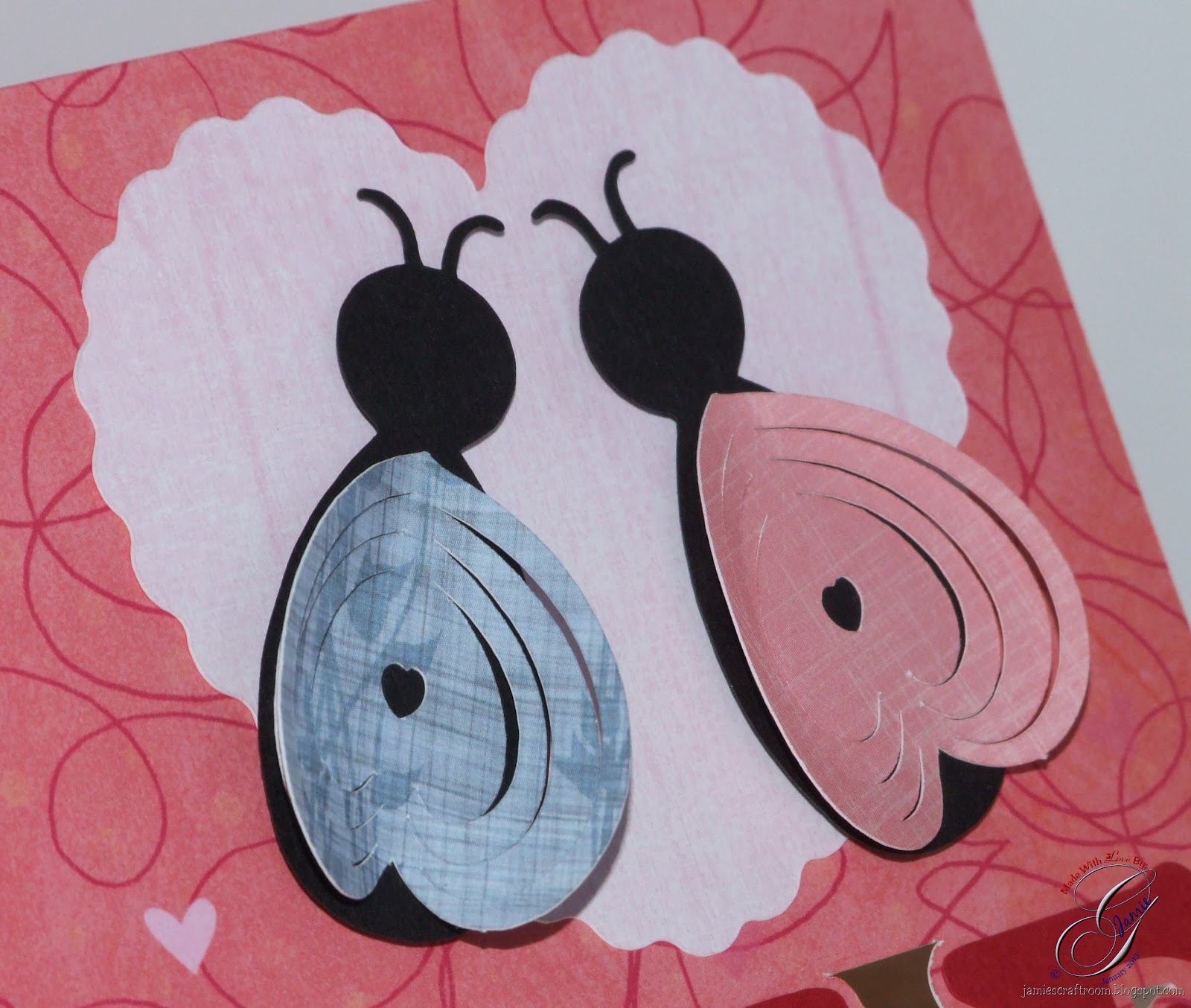
Love Bug Card


Machine Used: BossKut Gazelle
Software: Funtime Scrapbooking IV
Files Used: PopKut Love Bug by Judy Stark BKD 080
Materials: Cardstock, ribbon
Challenges: The Outlawz Paper ala Mode - Anything Goes

This project was complete because of a request that I to make a tutorial on how to weld letter to a card base.  After creating the tutorial and making the cut file I just had to make one!  :o)


The heart behind the love bugs I created in Funtime by using the scissor feature on a heart that was already available.

Those adorable little love bugs are available through Boss Kut Designs.  ADORABLE!!

 
Thanks for looking!!
*´¨)
¸.•´¸.•*´¨) ¸.•*¨)
(¸.•´ (¸.•` ¤ Jamie*´¨)

Friday, January 25, 2013

Single Sheet Bag and Paper Bow


Machine Used: BossKut Gazelle
Software: Funtime Scrapbooking IV
Files Used: Paper Bow (available in the Boss Kut Forum)
Materials: Cardstock, ribbon, pearl heart brad
Challenges: The Outlawz Twisted Thursday - 2 of the following: Designer Paper, Brads, and Embossing

I was inspired to create this project based on a tutorial I found here.  Here are the measurements for the score lines in her tutorial:

 
I found that you won't necessarily need the 3/4" and the 10 1/4" score lines.  It depends on how you want you are going to embellish your bag.
 
The bow is a cut file that I created in my Funtime software and made available in the Boss Kut Forum.  I am currently working on setting up my blog to be able to offer templates and cut files for those interested.  Hopefully I'll have that up and running soon!

Here's a close up of the bow.  Although I did use a little adhesive to the bow to attach to the bag, I also used the heart shape brad.


Here's a view of the bag open.  I ended up using 2 velcro but I think that one would have worked just fine as well!

  
Thanks for looking!!
*´¨)
¸.•´¸.•*´¨) ¸.•*¨)
(¸.•´ (¸.•` ¤ Jamie*´¨)

Tuesday, December 4, 2012

Winter Friends


Machine Used: BossKut Gazelle
Software: Funtime Scrapbooking III
Files Used: Santa and the Snowman coloring page
Materials: Card stock, Glossy Accents, Mod Podge, fine glitter
Challenges: The Outlawz Twisted Thursday - Anything Goes/Winter Friends Twist

I started this card by using a coloring book page that I found online.  I opened it up in my PaintShop Pro and started coloring.

In Funtime I typed out the text "Winter Friends" using the font Hobos available in Funtime.  I then created an outline and cut both out.  I added some Glossy Accent to the white of the sentiment.

Thanks for looking!!
*´¨)
¸.•´¸.•*´¨) ¸.•*¨)
(¸.•´ (¸.•` ¤ Jamie*´¨)

Thursday, November 29, 2012

A Fairy Christmas


Machine Used: BossKut Gazelle
Software: Funtime Scrapbooking III
Files Used: Fairy Poinsetta Digi Stamp by Make it Crafty, Christmas Corners 1 Digital Cutting File by Bird
Materials: digi image, card stock, red rhinestones, green pearls, stickles
Challenges: The Outlawz Paper a la Mode - Anything Goes

My first project including a digi image that I've "colored."  Now, I don't have the Copics or other similar types of markers so I used my Paint Shop Pro!

I did some research and looked for tutorials on how to color an image and then shaded it.  I did have a lot of fun learning something new and working with this image.  One of the things that I learned is that I'll need to be more dramatic when shading my images to achieve that POP that I see in so many beautifully colored images.


After I printed her out, I added some clear stickles to her beautiful wings.
 
For the holly border, I took one of the Christmas corners, copied 5 more of them in a circle and welded them together in my Funtime.
 
After cutting it out with my Gazelle I added some red rhinestones and silver stickles.

Thanks for looking!!
*´¨)
¸.•´¸.•*´¨) ¸.•*¨)
(¸.•´ (¸.•` ¤ Jamie*´¨)

Tuesday, November 13, 2012

Nuts 4 You


Machine Used: BossKut Gazelle
Software: Funtime Scrapbooking III
Files Used: Designs on Cloud 9 Fall Squirrels
Materials: Photo of my babies and me, cardstock, ribbon, brad, self stick pearls
Challenges: Designs on Cloud 9 - A Picture of Me Without You, The Outlawz Paper a la Mode -

Please be kind, this is my first layout so I wanted to keep it simple.
 
For the Designs on Cloud 9 challenge, I needed to include a picture of me with my children, include a Designs on Cloud 9 pattern, and then post it to the Facebook fan page.
 
For The Outlawz Paper a la Mode we needed to make a project that you are thankful for in some way.  Well, when it comes to my babies, I'm thankful for them in all ways possible!!

Finding a photo of my babies and then to see me in it is very rare!  For one, I'm usually the one taking all the pictures and two, I hate having my picture taken.  :o)  I'm sure there's a lot of Mom's that can relate with both.

Thanks for looking!!
*´¨)
¸.•´¸.•*´¨) ¸.•*¨)
(¸.•´ (¸.•` ¤ Jamie*´¨)

Sunday, November 11, 2012

The Outlawz Proud to be a Winner!!


I want to share my exciting news!!  My Pumpkin Teapot Card and Tea Bag Gift Box was a winner at The Outlawz!!  I've won 5 digital images from Jackson's Digital Expressions.


I made this set using the Pumpkin Teapot by Judy Stark BKD 145 available for purchase through BossKut Die Cuts.


Thanks for looking!!
*´¨)
¸.•´¸.•*´¨) ¸.•*¨)
(¸.•´ (¸.•` ¤ Jamie*´¨)

Saturday, November 3, 2012

Eat More Chicken!!


Machine Used: BossKut Gazelle
Software: Funtime Scrapbooking III
Files Used: Eat More Chicken by KaDoodle Bug Designs
Materials: Card stock, pearl stickys
Challenges: The Outlawz Twisted Thursday - Anything Goes Thanksgiving

Here's a simple card that I made using the adorable cut file from KaDoodle Bug Designs.  I did run into some disagreements with the glue but overall I don't think that it turned out too bad.  I used a paint pen for the sentiment "Eat more chicken!!"

Thanks for looking!!
*´¨)
¸.•´¸.•*´¨) ¸.•*¨)
(¸.•´ (¸.•` ¤ Jamie*´¨)

Thursday, November 1, 2012

CAS Cupcake Card


Machine Used: BossKut Gazelle
Software: Funtime Scrapbooking III
Materials: Card stock, ribbon
Challenges: The Outlawz Sunday Clean and Simple - Treats
 
This project I worked on and completed with my daughter.
 
I found the cupcake image at www.dulemba.com,  artwork © Elizabeth O. Dulemba.
 
After importing the image into Funtime, I created a cut image from it.  I then did a print and cut with it, so that I could fussy cut around the image.  Then my dearest daughter and I got to work coloring!  Now, please keep in mind that I've seen tons of fellow crafters who use Copics.  I'm working on heading that direction myself but for this project I broke out the good ole Crayola markers!  LOL  Hey, we all gotta start somewhere.
 
For my daughters card, she chose purple for her paper because it's her favorite color.  :o)
 

Can you tell she helped pick the colors for me on my cupcake?  This really was one of my most favorite projects and I'm really looking forward to working on another one with her soon!

 
Thanks for looking!!
*´¨)
¸.•´¸.•*´¨) ¸.•*¨)
(¸.•´ (¸.•` ¤ Jamie*´¨)

Tuesday, October 30, 2012

Give Thanks Easel Card


Machine Used: BossKut Gazelle
Software: Funtime Scrapbooking III
Files Used: Oak Leaves 0449, Maple Leaf by Judy Stark
Materials: Card stock, glitter, brads
Challenges: The Outlawz Saturday Paper a la Mode - Use Negative Space

Creating an easel card in Funtime is really very simple.  I'm going to use the very basics of tools, going step by step to make it super easy to follow along!  Be sure to check out the video tutorials available.  I've watched each of them at least once and many of them countless times.  I like going back to watch them because I've always seemed to forget something!!

I start out by creating a rectangle, making sure that it's selected, and then right click on it.  That will bring up a list of options; at the bottom select either height or width.  The transformation box will pop up with another list of options.  Select "Condense" so that it is highlighted in blue, then change the W. to 8 and the H. to 4, select apply.  These are just the dimensions that I chose for this project.

 
Then you have a couple of options, you can either create 2 score lines in Funtime or once you've cut the rectangle you can use a scoring tool and do it by hand.  For learning purposes, I'm going to explain how I do it in Funtime.
 
Now that the rectangle is the size I want it, I'm going to put it in the lower left hand corner so that I can make sure the score lines will line up where I want them.  I start by selecting the rectangle and then click on the transformation box again.  This time I'm going to select "Position," and then change the X Pos. to 0 and the Y Pos. to 0, select apply.  This will place the rectangle in the lower left of your mat.

 
For me personally, I like to make my cut lines and my score lines 2 different colors.  I do this just in case some times I want my Gazelle to score my lines and then other times I may choose to do that by hand.  It just depends on how many items I'm making.
 
After selecting another color from my color palette, I select the scoring tool.  In this tutorial I'm just going to place my score mark anywhere on my mat, concentrating on making sure that it's straight.  I do this because it's easier for me to use the transformation box options to change the height and the position.
 
Select the score line and select height this time in the transformation box.  Change the H. to 4, select apply. I'm using 4 as the height because we want to score the full height.  Then select the position, change the X Pos. to 2 and the Y Pos. to 0, select apply.  This will place the score line along the 2 inch mark along the X axis and right against the Y axis.

 
We need 2 score lines on this card, so we will use the same technique.  Create the score line, change the height to 4 but this time after selecting position, change the X Pos. to 4 and the Y Pos. to 0.


For my card in this example I rounded the edges of the card.  You can do this by first selecting "manipulate elements" and then "round corner."  When you first select a corner of your rectangle a box will pop up asking for the radius value.  I used 0.25 for this project, then click on OK.  It will change the corner you initially clicked on.  Click on the rest to change them as well; the box asking for the radius value will not pop up again.
 

Once I have the base of my card completed, I usually make a couple extra layers for future use.

One last thing I do before saving and closing my project (besides making something :o)) is select the entire base, including the cut and score lines, and group them together.
 

I hope this helps you in creating that special card for someone special!  Be sure check out the video tutorials  and don't forget to drop by the BossKut Forum Learning/Training Center.

Thanks for looking!!
*´¨)
¸.•´¸.•*´¨) ¸.•*¨)
(¸.•´ (¸.•` ¤ Jamie*´¨)
BossKut Design Team Member

For more projects and information, please click links below:
BossKut Gazelle Blog
BossKut Company Blog

Thursday, October 25, 2012

Halloween Boxes


Machine Used: BossKut Gazelle
Software: Funtime Scrapbooking III
Files Used: Pumpkin Banner by Judy Stark BDK 138, Corner Spider Web Banner by Judy Stark BKD 141, Anime Eye Full, Pumpkin Leaf, Spider web provided by Jules at the Boss Kut forum during a challenge
Materials: Cardstock, ribbon, fishing line, pipe cleaner
Challenges: The Outlawz Twisted Thursday - Halloween Twist

One box, many uses!!  I started creating a cut file for this box a while back and finally decided to finish it up.  I started by making it into a pumpkin and then the ideas just started flowing!

My original thought was to use these a candy boxes but I loved them so much I didn't want to give them away.  :o)  SO, I went out and bought some battery operated tea lights to put in them.


For the bat, I folded down all the tabs but the 2 that I used for the ears.  I created the cuts for the eyes and the mouth in Funtime using very basic shapes, welding them together, and then manipulating them until I got the look I wanted.  I also created the wings (complete with tabs to attach on the side) using the freehand tool and then once again manipulated the lines.


For the spider webs, I took the file that Jules provided during a challenge in the Boss Kut forum and cut it into quarters.  I sized it appropriately and then centered them on the box cut file.  Then using the spiders from the Corner Spider Web Banner by Judy Stark I added them to the top of the box.


For the eyes on the cat box, I imported the svg of the eyes from clker.com and welded a circle to it so that I would have the full cut out of the eye.  The nose is a simple heart shape that was available in Funtime.  For the whiskers, I cut fishing line and then using a paper piercer I threaded the fishing line through the cardstock.


I absolutely LOVE the face that Judy Stark created for the Pumpkin Banner and "borrowed" it for my box.  For the top I added some pipe cleaners that I folded around a pen and added some pumpkin leaves to the ribbon.


Here's a look from the top:


Thanks for looking!!
*´¨)
¸.•´¸.•*´¨) ¸.•*¨)
(¸.•´ (¸.•` ¤ Jamie*´¨)
Related Posts Plugin for WordPress, Blogger...