Showing posts with label Gazelle. Show all posts

Monday, April 13, 2015

Stencils for Sidewalk Chalk


Machine Used: BossKut Gazelle
Software: Funtime Scrapbooking IV
Files Used: Bunny, Cross, Egg Blank
Materials: Cardstock, sidewalk chalk

I know I'm late in getting this posted but with 2 young children on Spring break, I didn't have a whole lot of time.  :o)

For this very simple project, I simply cut out the images I wanted to use and we used those as stencils on the pavement.
 

We ended up decorating the complete sidewalk in front of our house!

 
During our coloring, we discovered that when we rubbed the chalk into the cement after we went over the stencil that we were able to obtain a better image and the colors blended together.
 

We received MANY compliments on our colorful and creative sidewalks while people were out walking.  :o)

We had so much fun with this images that we're looking forward to making more for Memorial day!  Be sure to check out the other beautiful designs at Bosskut!!

Thanks for looking!!
*´¨)
¸.•´¸.•*´¨) ¸.•*¨)
(¸.•´ (¸.•` ¤ Jamie*´¨)

Thursday, March 26, 2015

Putting Words into a Shape Tutorial


Machine Used: BossKut Gazelle
Software: Funtime Scrapbooking IV
Files Used: Bluebook Hearts
Fonts Used: Impact

With the help of the WONDERFUL ladies at the BossKut Forum I was finally able to learn how to use the intersect tool in Funtime to put words into a shape!

Now I've always wanted to be able to do this but wasn't even sure where to start.  When I found this video on YouTube (Text to Heart Shape) I just knew that this could also be easily accomplished in Funtime.

After playing with it on my own for a bit and having some success I began to wonder if there was an easier way.  With that, I went to BossKut Forum to seek help from the awesome and talented Terri and Jules.  Now with the knowledge that they've armed me with, I'm here to share with you a tutorial on how to create these fun images!  First, here's my first ever attempt at a video.


Now for the written explanation.  In Funtime, I start with a 12x12 work surface.  On the right, select SHAPES and scroll down to the full heart that is available.  Remove the fill color and change the line thickness to 0.003.  Size the heart as large as you'd like and what makes it easiest for you to work with.


Then select FONT, click on True Type, and choose a font you'd like to work with.  In this case, I used the IMPACT font.  Type "FAMILY" (all in capital letters) and click OK.


Size "FAMILY" so that it extends just over the heart on the left and the right.  With just "FAMILY" selected, in the upper left, select TEXT, then CONVERT TEXT TO PATH.  This will allow you adjust each letter individually.  A good thing to keep in mind at this point, when you converted the text to path, that also made each cut in the middle of the letters, like the "A" a separate cut as well.


Before going any further it is a good idea to select the inner and outer cut of the "A."  Once both are selected, group them together so that when you go to adjust the "A" in the heart, you maintain the integrity of the "A." 


At this point I usually start working the letter that I would like centered in the heart.  For this example I'm going to start working with the "M."  Selecting just the "M", I move it to the center of the heart and readjust the size by clicking and dragging on the points just outside the letter.  It's important to make sure that the top and the bottom of the "M" is just outside the heart in some places.

I'm not worried about the overlapping letters or the spacing.  I'm simply working on the "M" and it's placement.  Once I'm happy with the "M" I will work on the other letters to get them where I want them.


Now that I'm good with the "M", I work on the letters, making sure that they are also extended past the heart at the tops and bottoms.


For the next part it'll be easier to see the construction points of each of the letters so that we can continue to extend them past the heart.  To do this, first select the C at the bottom of Funtime with the dots on it.  Then on the left of the screen select the move point tool.


Then select a construction point on the "F" and extent past the heart.  When I do this part, I choose the points of the letters and keep the line as straight as possible to maintain the integrity and identity of each letter.


I continue this with each letter until they have all been completed and it will look something like this when you are done:


Once you're happy with how each letter looks extended past the heart, click on the C at the bottom of Funtime to hide the construction points again.

Make sure to select everything, the heart and all the letters.  At the top of the screen select, TOOLS and then INTERSECTION.


Once again, select everything and group them together.  This will help in maintaining the image when/if you decide to resize it.


Make sure to save all your hard work!


I hope that was easy to follow and the that video helped.  As always, if you have any additional questions, please feel free to contact me!

Thanks for looking!!
*´¨)
¸.•´¸.•*´¨) ¸.•*¨)
(¸.•´ (¸.•` ¤ Jamie*´¨)

Tuesday, March 24, 2015

Wild about Wilcox Shirt


Machine Used: BossKut Gazelle
Software: Funtime Scrapbooking IV
Fonts Used: Funtime Hobos
Materials: Heat Transfer Vinyl

We recently moved and because of the move my daughter had to relocate schools.  This month her new school has been celebrating reading with a different theme each week.  This week is centered around her school.

She's supposed to wear cloths that support the school.  Unfortunately for us, the PTO sold shirts at the beginning of the school year and don't have any more.  Well, I couldn't send her to school without some school gear and colors!!

After playing around in the Funtime program, I came up with a couple of designs.  I asked family and friends which one they liked best but ultimately it was up to my daughter.


She picked the blue design because it was easier for her to read.

While she was at school one day I cut the image and ironed it onto the shirt that we got for her.  Fortunately she LOVED it!

Thanks for looking!!
*´¨)
¸.•´¸.•*´¨) ¸.•*¨)
(¸.•´ (¸.•` ¤ Jamie*´¨)

Tuesday, March 17, 2015

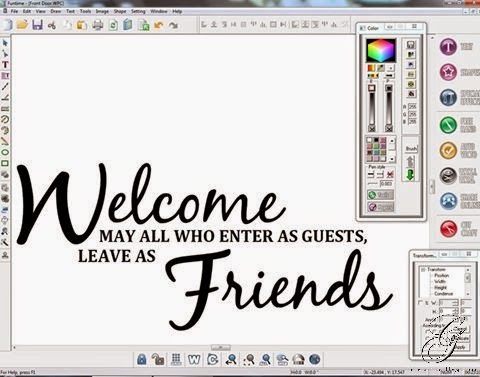
Welcome Friends Vinyl Door Decal


Machine Used: BossKut Gazelle
Software: Funtime Scrapbooking IV
Fonts Used: BlackJack, Cambria
Materials: Outdoor Vinyl, Transfer Tape

I've seen this sentiment or something similar used and have always loved the welcoming feel of it.  Most times it is made with indoor vinyl and placed inside but I wanted to decorate our boring white front door.

Using my Funtime program, I created the sentiment and positioned it how I wanted it placed.  With Funtime, this project is really very simple and took little time to complete.


After cutting the vinyl in black outdoor vinyl, I weeded the negative space off and placed transfer tape on it.  I eyed the center as best I could and put it on the front door.


Thanks for looking!!
*´¨)
¸.•´¸.•*´¨) ¸.•*¨)
(¸.•´ (¸.•` ¤ Jamie*´¨)

Tuesday, January 14, 2014

Army Wife Wine Glass


Machine Used: BossKut Gazelle
Software: Funtime Scrapbooking IV
Materials: Oracal Vinyl 651, plain red wine glass

I had so much fun putting this wine glass together!  My sister got this beautiful Air Force Wife wine glass and I immediately wanted an Army Wife one.  Well, instead of buying one that I found online, I chose to open up my Funtime program and get to work.  This made it easy to create the wine glass EXACTLY how I wanted it.

I used 4 images and I'm still debating if I want to add to the stem of the glass.


The castle on my glass represents my dearest hubby's MOS (Military Occupational Specialty), an Engineer!  Based on some of the cute Engineer wife things available, I used the sentiment "Queen of his castle" for the base of my glass.  Super cute!!

 
Here are my vinyl designs before application.  I definitely recommend layering your vinyl before applying it. 
 
The Army Wife design was one that I worked relentlessly!  I made several of them before finally finding the one that I liked the best.  With the help of Judy at Scrap Cuts by Judy, I got exactly what I wanted!  THANK YOU SO MUCH JUDY!!

 
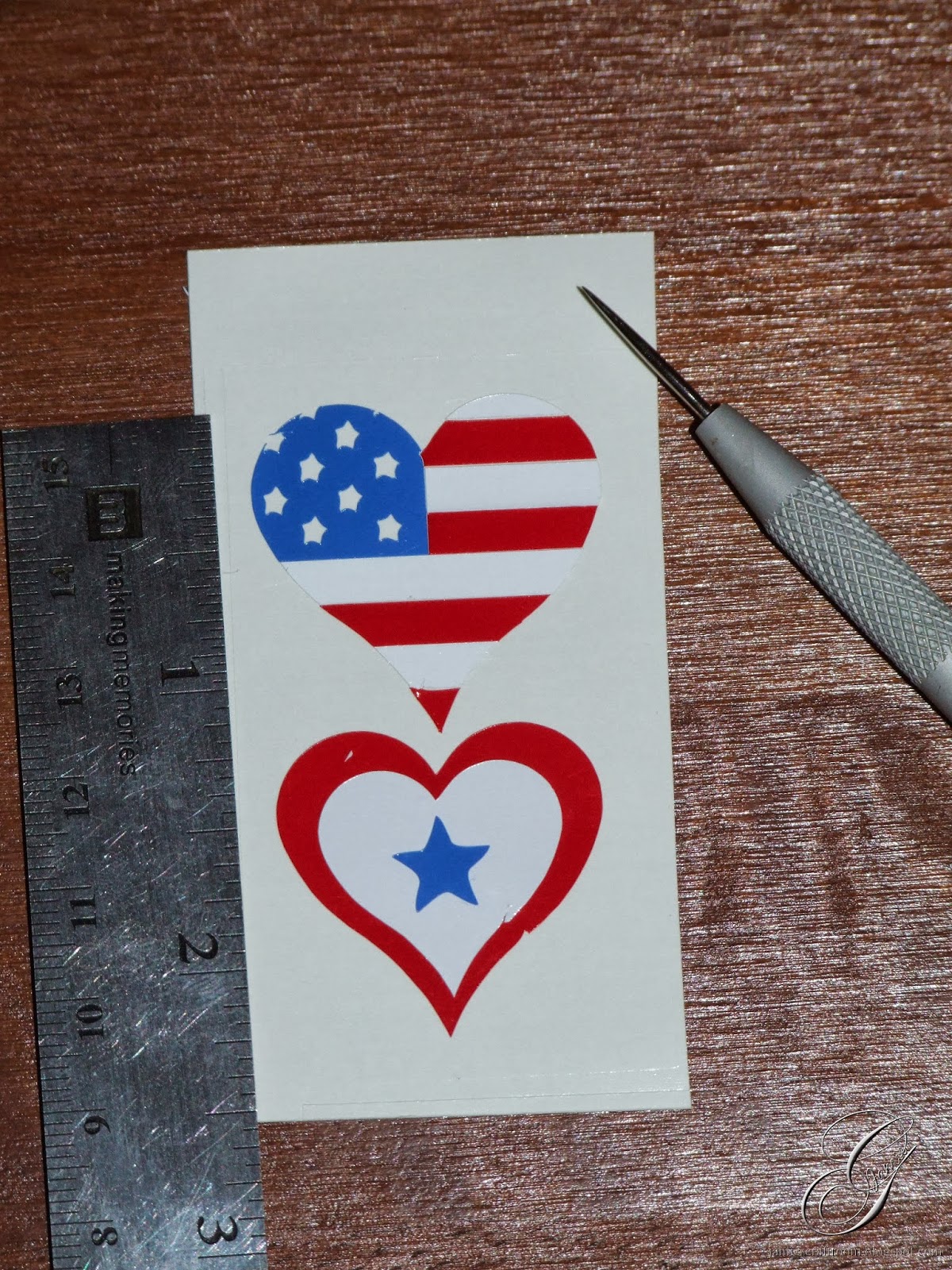
The heart was the last design that I applied.  I couldn't decide which one I wanted to go with, the heart with the American flag or the one that looked more like a service flag.
 
I made both of these files easily in Funtime!


Thank you so much for taking the time to check out my wine glass.  Now I'm off and on to another project!

Thanks for looking!!
*´¨)
¸.•´¸.•*´¨) ¸.•*¨)
(¸.•´ (¸.•` ¤ Jamie*´¨)

Monday, December 30, 2013

Scrapbooking A Deployment


Machine Used: BossKut Gazelle
Software: Funtime Scrapbooking IV
Files Used: Heart with Ribbon #JS1511 by Scrap Cuts by Judy

Finally got to the first 3 pages of the beautiful scrapbook that my dearest hubby bought me while deployed to Kuwait.  Now that I've got started, the ideas are flooding with what to do with additional pages!

For the first page, I wanted to honor my husband and the beautiful gift he gave me.  I started with one of my most favorite pics of him from the deployment.  For the write-up, I simply inserted a picture of a Kuwait map into Word and used the washed out option.  Then I typed up some minimal information regarding his deployment and printed it out.  VERY simple!!  I cut it out to the size I wanted and then inked the edges for some additional dimension.

This beautiful file, Heart with Ribbon #JS1511, I got from Scrap Cuts by Judy!  I felt it was the perfect accent to this first page that showed where my love and support is.


Of course I had to do an additional second and third page because I had a few more pictures that I wanted to display along with a sweet card that he sent me.

 
For the second page I made sure to add some basic information regarding Kuwait and Camp Buehring.
 
 
The thank you stamp is of course from Stampin' Up!
 

With the third page, I added the card that he sent me and a picture of him at his favorite place!  :o)

 
The flag banner that I created is all from Stampin' Up!
 
Ink: Pacific Point #126951, Real Red #126949, White Stazon #106960
Stamp Sets Used: *Banner Blast #133554
Punches: *Banner #133519
Materials: White Bakers Twine #124262

* Sale-A-Bration sets
 

Thanks for looking!!
*´¨)
¸.•´¸.•*´¨) ¸.•*¨)
(¸.•´ (¸.•` ¤ Jamie*´¨)

Sunday, August 25, 2013

Lil' Princess Tee Shirt


Machine Used: BossKut Gazelle
Software: Funtime Scrapbooking IV
Files Used: Butterfly with Flourishes 0395, Princess Hand Mirror by Judy Stark BKD 002
Materials: Heat Transfer Vinyl, Light Pink Rhinestones

I recently made a Service Flag tee shirt for my Mom and my daughter saw it.  That was the end of that, now she wanted me to make a shirt for her as well!
 
For her, I decided to add a little more Princess to it.  It was something that I thought that she would appreciate A LOT more.  :o)  I started by finding the perfect sentiment and worked in Funtime to get the layout just right.
 
 
I used the Funtime font, Impress BT Regular, for the majority of the sentiment.  "HERO" I used the true type font Army and for "Lil' Princess" I used the true type font CAC Champagne.
 
With Funtime, it made it so easy to add an outline to "Lil' Princess" so that I could incorporate my daughter's favorite colors.


Using the Butterfly with Flourishes 0395 and the Princess Hand Mirror by Judy Stark BKD 002 I positioned them around my sentiment.
 
 
I ironed on everything at once but the top layer of "Lil' Princess."  Once everything cooled a bit, I added the top layer of "Lil' Princess."  I love how easy it is to use more than one color of heat set vinyl and how well you can layer colors.
 
With everything in place, I needed to add a little bling to the crown.  Using Light Pink Rhinestones, I set them on the crown and using the already warm iron, I set them.

Overall I'm very happy with how this shirt turned out but I think that if I were to make another one I would use a lighter purple vinyl for the majority of the sentiment.

Thanks for looking!!
*´¨)
¸.•´¸.•*´¨) ¸.•*¨)
(¸.•´ (¸.•` ¤ Jamie*´¨)

For more projects and information, please click links below:
BossKut Gazelle Blog
BossKut Company Blog

Thursday, June 27, 2013

Embossing with the Gazelle


Machine Used: BossKut Gazelle
Software: Funtime Scrapbooking IV
Files Used: Swirly Flourish by Judy Stark BKD 201, Swirly Butterfly by Judy Stark BKD 200
Materials: Chip board, card stock

For this project I decided I wanted to see what my Gazelle could do with some chip board!  My goal was to take one of the beautiful BossKut Designs and make an embossing folder that I could pass through my manual die cutter press.

Using one of the chip boards that I've received when ordering family photos, I cut out the Swirly Flourish by Judy Stark BKD 201.  I cut a rectangle around it and then cut an identical sized rectangle.  I used a standard blade, speed 1, and force 5 to cut the chip board.

I applied masking tape to one of the sides, making my 2 rectangles a sandwich.  Then I put the die cuts back into the rectangle that I cut them from and applied glue to the side that would touch the other rectangle.  I folded the 2 rectangles together, making sure that the negative matched up with the die cut.


Since I was having so much fun with the embossing, I had to put my Gazelle to work and emboss some vellum as well.  I used the embossing tool and embossing mat to emboss the vellum.  I chose to use a lower force setting of 2 and multiple passes (4) to get the look I wanted.

For additional decoration to the card, I used the new release Swirly Butterfly by Judy Stark BKD 200.  With a few self adhesive pearls, these adorable butterflies really completed the look of the card.
 

If you're a Gazelle owner and have her registered, be sure to stop by the Boss Kut Forum for additional projects that are shared!

Thanks for looking!!
*´¨)
¸.•´¸.•*´¨) ¸.•*¨)
(¸.•´ (¸.•` ¤ Jamie*´¨)
BossKut Design Team Member

For more projects and information, please click links below:
BossKut Gazelle Blog
BossKut Company Blog

Tuesday, May 28, 2013

Boss Kut Memorial Day Sale


Please visit the Boss Kut website to take advantage of this SALE!!


Thanks for looking!!
*´¨)
¸.•´¸.•*´¨) ¸.•*¨)
(¸.•´ (¸.•` ¤ Jamie*´¨)
BossKut Design Team Member

For more projects and information, please click links below:
BossKut Gazelle Blog
BossKut Company Blog

Thursday, May 23, 2013

Ballerina 2-page Scrapbook Layout


Machine Used: BossKut Gazelle
Software: Funtime Scrapbooking IV
Files Used: Heart Doily by Judy Stark BKD191, Boss Kut Kids by Karen Taglia 0760, Ballet Outfit by Karen Taglia 0761, Princess Hand Mirror by Judy Stark BKD002
Materials: Card stock, pictures, self-adhesive rhinestones/pearls

I'm not usually one that is into scrap booking but have decided it was time to start stepping onto unfamiliar grounds.  A wonderful friend invited me to a crop last month and I took her up on the invite.  I was very much intrigued by all the beautiful scrapbook pages that I saw her creating.  I guess you could say that it struck a fire in me to start.

Although my daughter has been involved in dance classes since she was 18 months old, this year was her first dance recital on stage!  I am one proud Momma!  Using this first of hers, I decided it was time to create a scrapbook page using the beautiful photos of her.

The first page show cases one of my favorite pictures of her and the Boss Kut Kids by Karen Taglia 0760 in the Ballet Outfit by Karen Taglia 0761.


I chose to dress this beautiful little ballerina all in pink, just like my daughter's recital outfit was.  I did ink the outfit some for additional detail and dimension.  Although it's hard to see in this picture, I cut the legs in pink and did an identical cut of the legs in vellum.  I felt that this gave the "leggings" a more natural look.
 
The tiara is from the Princess Hand Mirror by Judy Stark BKD002 with a slight modification.
 

The new Heart Doily by Judy Stark BKD191 made a perfect place to put my picture center stage and tie both of the pages together.  I absolutely LOVED the way that this cut out and looks at 11.5" high!!  Beautiful!
 
 
On the second page of my layout I chose a Funtime font and added the outline to it.  I love the way that Funtime makes it so easy to create titles!
 

Please be sure to visit the BossKut Die Cuts page for additional cut files!  Keep checking back for new releases.

Thanks for looking!!
*´¨)
¸.•´¸.•*´¨) ¸.•*¨)
(¸.•´ (¸.•` ¤ Jamie*´¨)
BossKut Design Team Member

For more projects and information, please click links below:
BossKut Gazelle Blog
BossKut Company Blog
Related Posts Plugin for WordPress, Blogger...